
EN
Get started with Finta Business
The safest way to publish a business is to complete the Get started checklist from top to bottom. This ensures that the profile, services, payments, and customer links are set up in the right order.
Prerequisites
Have the following ready:
- business name, organisation number, and contact information
- a logo and, ideally, a cover image
- opening hours or booking hours
- services or products with prices
- terms of sale and privacy information
- information about the payment provider you want to use
You can save as you go. Do not publish until you have checked the public links, prices, opening hours, and legal texts.
What you will learn
- the recommended order for the initial setup
- what must be completed before the business is published
- what to check in the customer journey after publication
Recommended order
- Open My businesses and select Manage.
- Go to Get started in the left-hand menu.
- Add a logo and basic business information.
- Set opening hours or booking hours.
- Publish the required legal documents.
- Add services/products and categories.
- Connect a payment method if customers will pay online.
- Configure the widget and public links.
- Check the page as a customer before publishing the business.
How to read the checklist
Required items normally need to be ready before you go live. Recommended items improve operations, but can often be completed later, such as inviting employees, finding partners, or connecting social media accounts.
Select an item or the Go button to open the relevant setting. Once you save valid information, progress updates automatically.
After publishing
Open Overview to track revenue, orders, and activity. The figures may be empty at first.
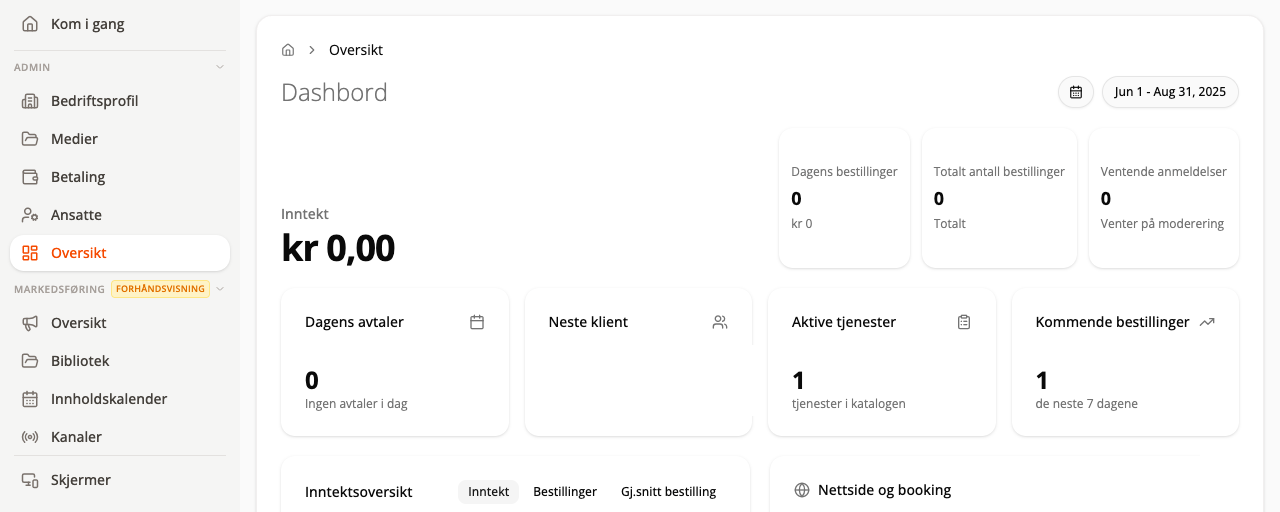
Then check:
- that the business opens from the public link
- that services/products appear with the correct price
- that a booking or order can be completed
- that the preferred payment method appears
- that confirmations reach both the business and the customer
Next step
Continue with Select or create a business or go directly to Business profile, opening hours, and legal information.