
EN
Bookings, tables, and the waitlist
The Bookings module brings together reservations, the calendar, and availability. Restaurants can also use the table overview and waitlist, while salons and service businesses normally use schedules and employees.
Prerequisites
- Bookings are enabled for the business.
- You know your availability and capacity, and which employees, resources, or tables customers can book.
What you will learn
- the difference between opening hours and bookable hours
- how to create, find, and reschedule reservations
- how to use the table overview and waitlist in practice
The complete booking flow
The main difference is the status after a customer submits a booking: a valid table reservation is Confirmed immediately, while a salon appointment is created as Pending and must be handled by the business. A general service inquiry is a separate customer journey and should not be treated as a booking.
The process works as follows:
- The business publishes actual availability for tables, employees, and resources.
- The customer chooses a service or table, a time, and their contact details.
- Finta.no checks capacity, duration, skills, and overlapping bookings where relevant.
- Table reservations are confirmed immediately; salon appointments wait for confirmation from the business.
- The business reschedules, cancels, or updates the status throughout the booking lifecycle.
- A rescheduled booking is checked again for capacity and conflicts before it is saved.
Set up availability first
- Go to Operations → Bookings → Schedule.
- Choose the days and time periods customers can book.
- Connect employees or resources to the correct services when relevant.
- Set durations, breaks, and capacity.
- Save, then test a booking from the customer-facing page.
The opening hours in Business profile describe when the business is open. The Schedule determines the times customers can actually book.
Create a reservation manually
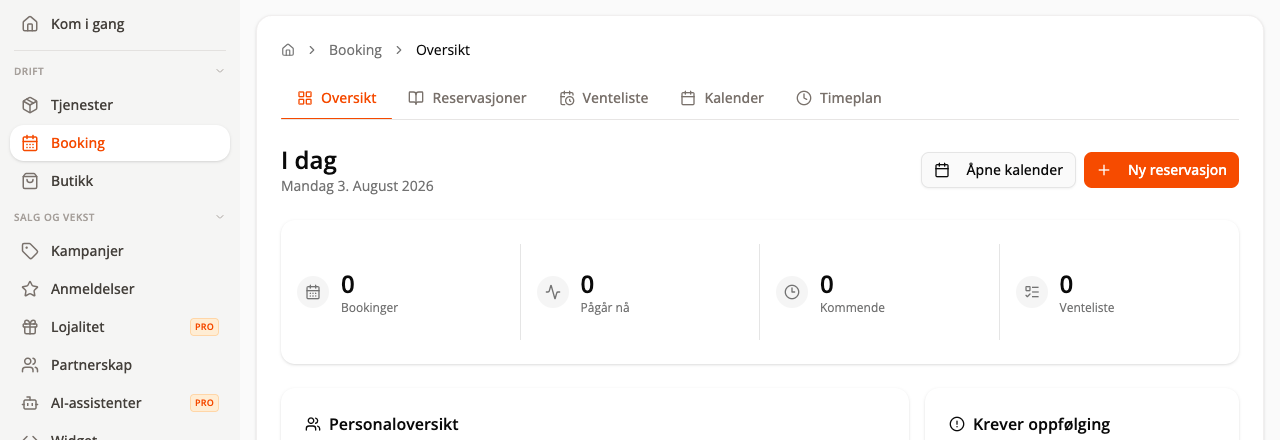
- Go to Bookings → Overview or Reservations.
- Select New reservation.
- Choose the date, time, service/table, and employee if relevant.
- Enter the customer’s name and required contact information.
- Check capacity and save.
The system will normally warn you if the table, resource, or employee is already occupied.
Handle the status after submission
For salon appointments, open the pending booking and choose whether to confirm or cancel it. For tables, an accepted public reservation is already confirmed.
A booking can later be set to statuses including:
- Confirmed when the customer has a place
- Seated when the guest or customer arrives
- Completed when the visit is over
- No-show when the customer does not arrive
- Canceled when the booking will not go ahead
The public salon flow records the price and any discount, but does not automatically start a payment transaction. Do not treat a submitted salon booking as paid without separate payment confirmation.
Use the calendar
The Calendar provides a time-based overview. Use it to find available times, open a reservation, or reschedule a booking.
When rescheduling a booking:
- check that the new time has sufficient capacity
- check that the employee or table is still suitable
- inform the customer about the change
- confirm that the original time was released
The business reschedules bookings in the current flow. There is no general public self-service option for customers to reschedule or cancel their own bookings.
Tables and the table overview
For businesses with tables:
- Create tables with numbers and capacity.
- Place the tables in the table overview if the feature is enabled.
- Use reservations to assign guests to tables.
- Check for conflicts before moving or combining bookings.
Waitlist
Use the waitlist when the requested time is full. Record the requested time, number of guests, and contact information. When space becomes available, create or connect a booking and inform the customer.
A waitlist entry is not a confirmed reservation. Make it clear when the customer actually has a place.
Email alerts for new bookings
- Go to Booking → Settings.
- Turn on alerts for new bookings.
- Choose which sources should alert you: online ordering, online, phone, manual, or kiosk.
- Add up to three recipients and save.
Bookings you create yourself in the dashboard have the source manual and do not alert until you select that source. Recipients are separate from the order ones, so bookings can go to the front desk while orders go to the kitchen.
Next steps
Make bookings available to customers with Widgets and going live or learn how to reschedule a booking in Common workflows.
Flowchart
flowchart TD
  accTitle: Booking flow for tables and salon appointments
  accDescr: The flow shows the shared setup and customer steps, followed by the difference between table reservations that are confirmed immediately and salon appointments that wait for confirmation from the business.
  A["The business configures services,<br/>resources, tables, and availability"] --> B["The customer chooses a date, time,<br/>and provides their details"]
  B --> C{"What is being booked?"}
  C -- "Table" --> D["Check capacity<br/>and time conflicts"]
  D --> E{"Capacity available?"}
  E -- "No" --> F["Choose another time<br/>or use the waitlist"]
  F --> B
  E -- "Yes" --> G["The reservation is confirmed"]
  C -- "Salon appointment" --> H["Check treatment, employee,<br/>duration, and time conflicts"]
  H --> I{"Valid and available?"}
  I -- "No" --> F
  I -- "Yes" --> J["Booking is created as pending"]
  J --> K{"The business handles the request"}
  K -- "Decline" --> L["Booking is canceled"]
  K -- "Confirm" --> G
  G --> M{"On the booking date"}
  M -- "Reschedule" --> N["Check the new time and resource"]
  N --> G
  M -- "Cancel" --> L
  M -- "Arrived" --> O["Set as seated<br/>and then completed"]
  M -- "No-show" --> P["Set as no-show"]